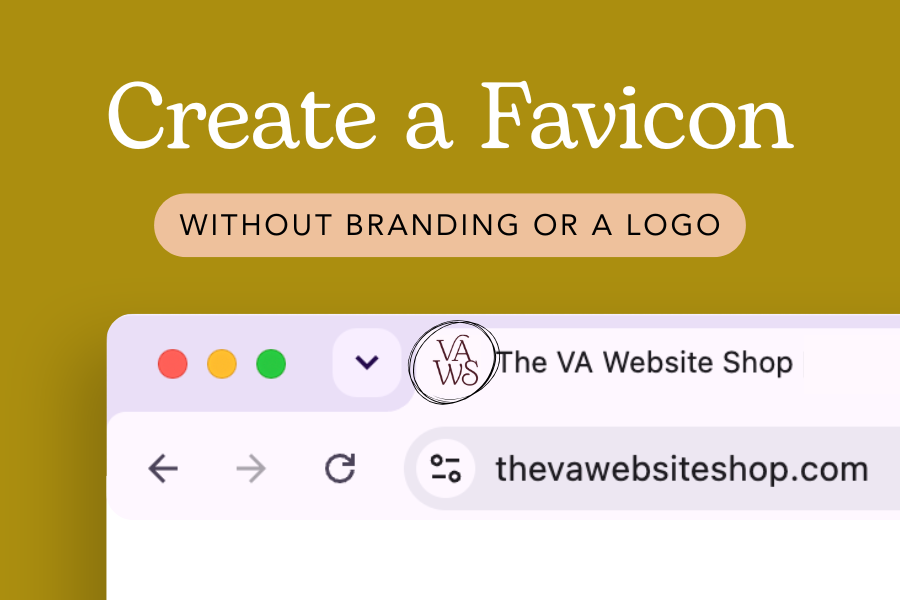
The favicon at the top of this website
A favicon is the little icon you see at the top of your browser. Usually it’s some version of a brand’s logo, an icon, or even an initial. It may seem like a little thing, but having an on-brand favicon greatly increases trust with your audience and can also increase brand awareness.
Did you know - you don’t need professional branding or even a logo to have an on-brand favicon? In this quick tutorial you’ll learn how to create a nice looking on-brand favicon with simple text, so that you can create a cohesive brand experience on your website
My favorite (FREE!) tool for this is favicon.io, which is what we’ll be using below.
Creating a Favicon without Branding
With favicon.io’s text to favicon generator, you can create a simple favicon even if you don’t have a logo!
You’ll choose a combination of different:
Fonts (adjust size and weight)
Colors (background and text color)
Shapes (square, rounded square, or circle)
Step 1: Add in Your Text
This should be 1-2 letters that represent your brand name, or even your initials if you’re a personal brand.
Step 2: Adjust The Text Font & Size
Choose from a wide selection of fonts, then resize using the Font Size adjuster to make sure your letters fit nicely in the icon. And don’t worry about if your one specific brand font isn’t an option - just choose something close. The favicon will be so small, you probably won’t even be able to tell!
Favicon.io seems to have most Google fonts, plus many more options. (For font inspo, check out this blog post with my favorite free Google fonts!)
Step 3: Add Your Colors
Even if you only have 1 brand color, that’s enough! Set the background to your brand color, as this is what will take up most of the room on the icon.
If the background is a light color, make your text black. (Or dark enough to read)
If the background is a dark or vibrant color, make your text white. (Or light enough to read)
Note: When I say “dark enough to read”, I’m talking about color contrast. Having good color contrast ensures accessibility on your website. To check your color contrast, use a free tool (my favorite is this one from Coolors) to make sure there’s enough contrast between your text and background colors.
Step 4: Download, Then Upload to Your Website Platform
Once you’re happy with your design, click the Download Package button to download your files. Then in your website platform of choice, find the place to upload your brand’s favicon.
If you’re using Squarespace, you’ll find this in your Settings under Browser Icon.
Here’s an example of one I made using 1 of my brand colors and the letters VA as in “VA Website Shop”:
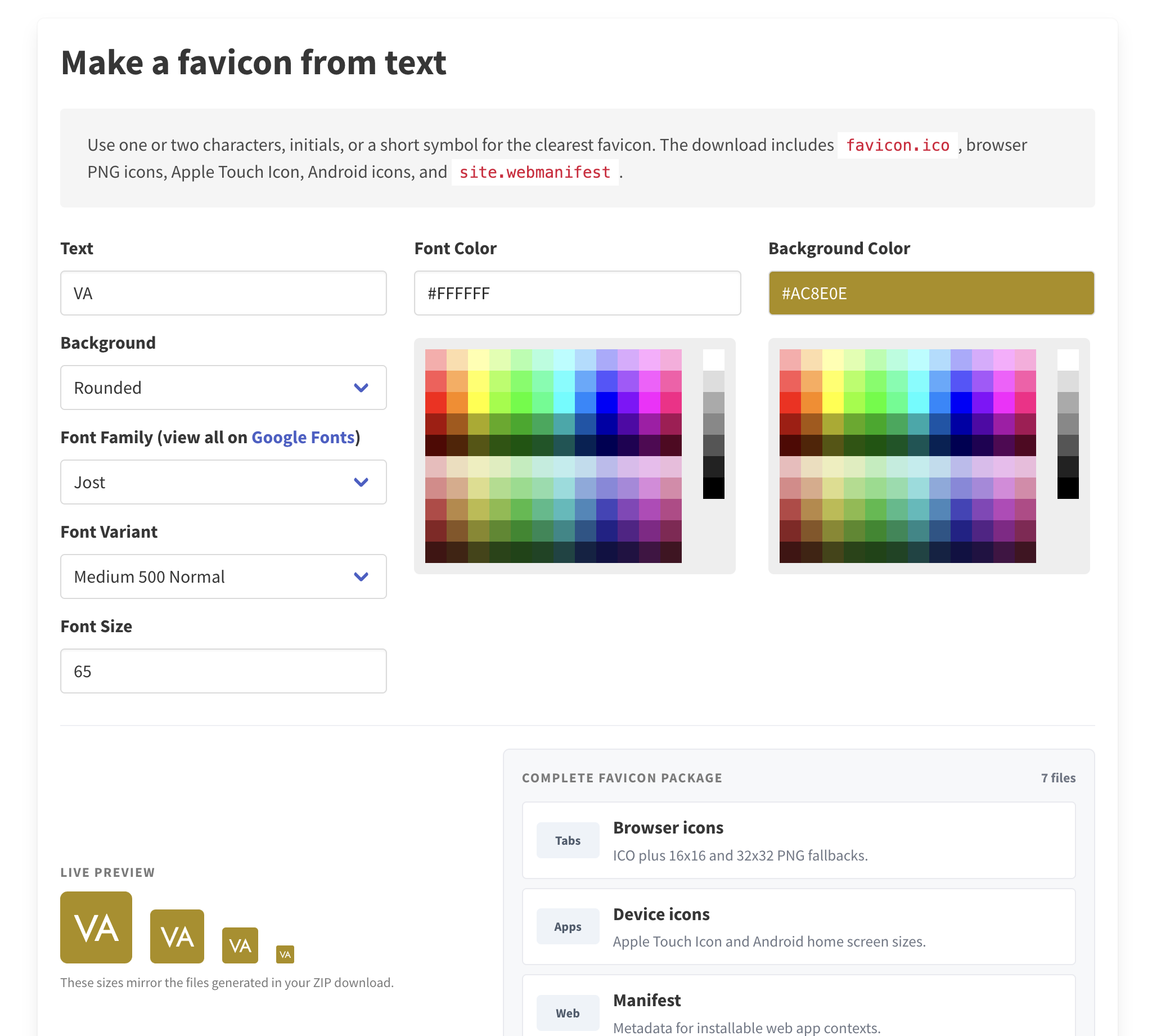
And they even give you a live preview in the browser so you can see what it looks like in real time!

I love free tools like this because it makes creating an on-brand website experience that much more accessible for people at all budgets.
Looking for more free design tools and resources? Check out these: