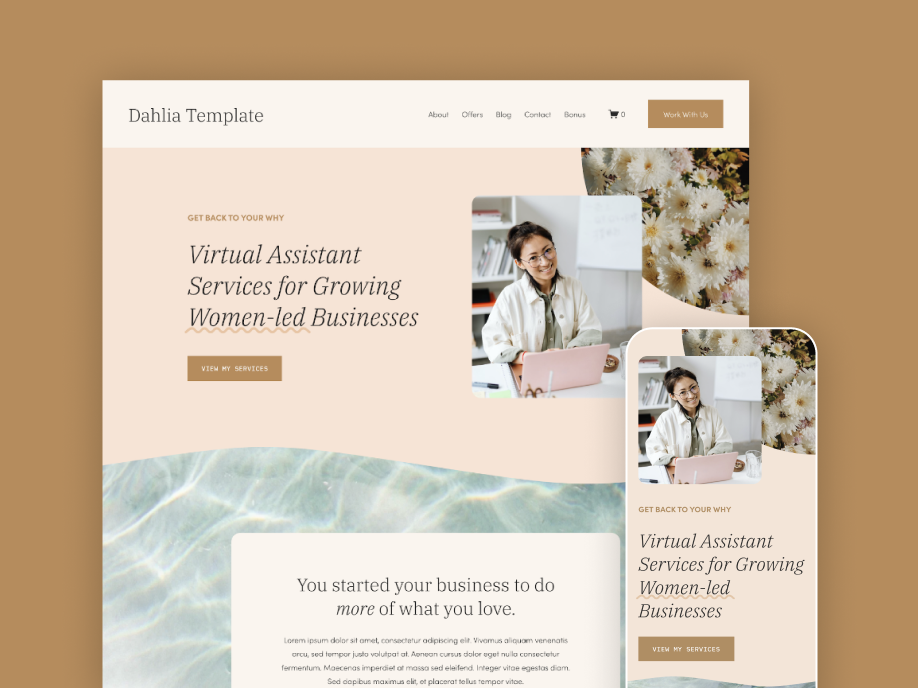
These 3 tips are extremely easy to implement on your website and will give your target audience a smooth and cohesive brand experience:
1. Personalize Your Website’s Favicon
A favicon is the tiny little branded icon that appears at the top of your browser window. If you’re using Squarespace and have never set your favicon before, it will be a little grey cube. Here’s a picture of my favicon for reference:
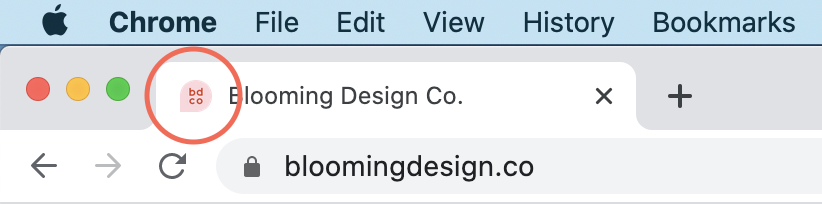
It may seem small, but updating this can really polish off your website and make it feel professionally-designed.
A great image to place here is your icon, simplest form of your logo, or whatever you use as your social media picture (unless it’s a picture of you… don’t do that). By adding your branding to this spot, you’re increasing your brand awareness and building trust with your audience. When buying online, it’s always reassuring to see a brand’s logo in that little browser tab spot.
How to add a favicon with Squarespace:
Squarespace 7.0
From the Home Menu click Design, then click Logo & Title. Scroll down to Social Browser Icon (Favicon). Here you can drag in your image or click the arrow to upload from your browser.
Squarespace 7.1
From the Home Menu click Design, then click Browser Icon. Here you can drag in your image or click the arrow to upload from your browser.
A note about dimensions: In Squarespace, if the dimensions of your favicon aren’t perfectly square (a 1:1 ratio), Squarespace will distort your image. Make sure your image file is perfectly square before uploading.
How to make one:
If you don’t have an icon or have no idea what to put here, you could always just make it a simple letter! My personal favorite site is favicon.io, where you can make an image, text, or emoji into a favicon file.
2. Update the Social Sharing Image
A Social Sharing Image is the image people see when any link to your website is shared on a social media platform like Facebook or LinkedIn. On Squarespace, you can actually set a different Social Sharing Image for each page on your site! But to keep things simple, it’s easy to set one default image.

If you choose not to set a Social Sharing Image, Squarespace will automatically pull your logo, and you’ll end up with something like this image.
What you see here doesn’t look too professional, and it doesn’t give us a good idea of what’s on the other side of the link.
Use this social sharing image to your advantage to attract people to your website with a nice photo or well-made graphic that lets them know what to expect.
You can use a regular image or a service like Canva to create your own graphic.
At the time of writing this post (July 2020), Facebook dimensions for their social image sharing are 1200 x 630px. You can read more about Facebook’s image sizing and guidelines here.
How to upload your social sharing image:
Squarespace 7.0
From the Home Menu click Design, then click Logo & Title. Scroll down to Social Sharing Logo. Here you can drag in your image or click the arrow to upload from your browser.
Squarespace 7.1
From the Home Menu click Design, then click Social Sharing. Here you can drag in your image or click the arrow to upload from your browser.
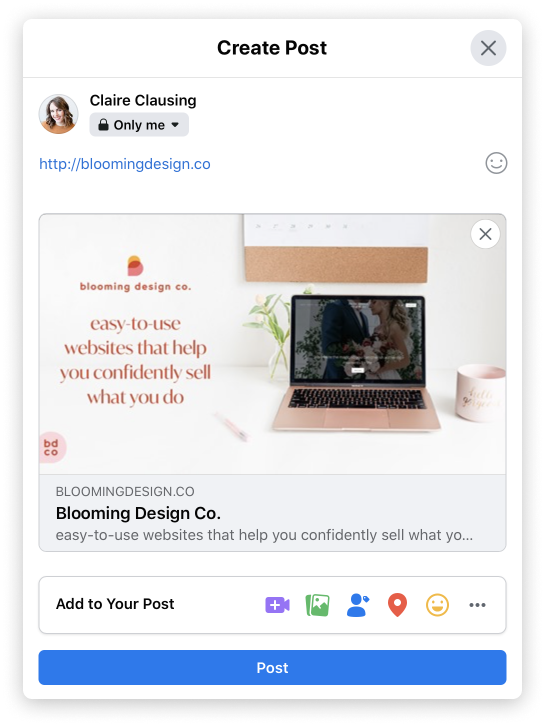
Here’s what my new social sharing image looks like. I made this in Canva with a background image I already had from my website, my logo, and my tagline.
Now people can easily see what I do before they ever click the link.
3. Create a Instagram Bio Links Page on Your Website
I see so many people using a third-party service for the link in their Instagram bio like LinkTree or Milkshake, when they could be sending that traffic to their own website! If you use one of those services and love it, then that’s great—stick to it! But using our own website for your Instagram bio link is a great way to up your website traffic, boost your SEO, and grow your email list.
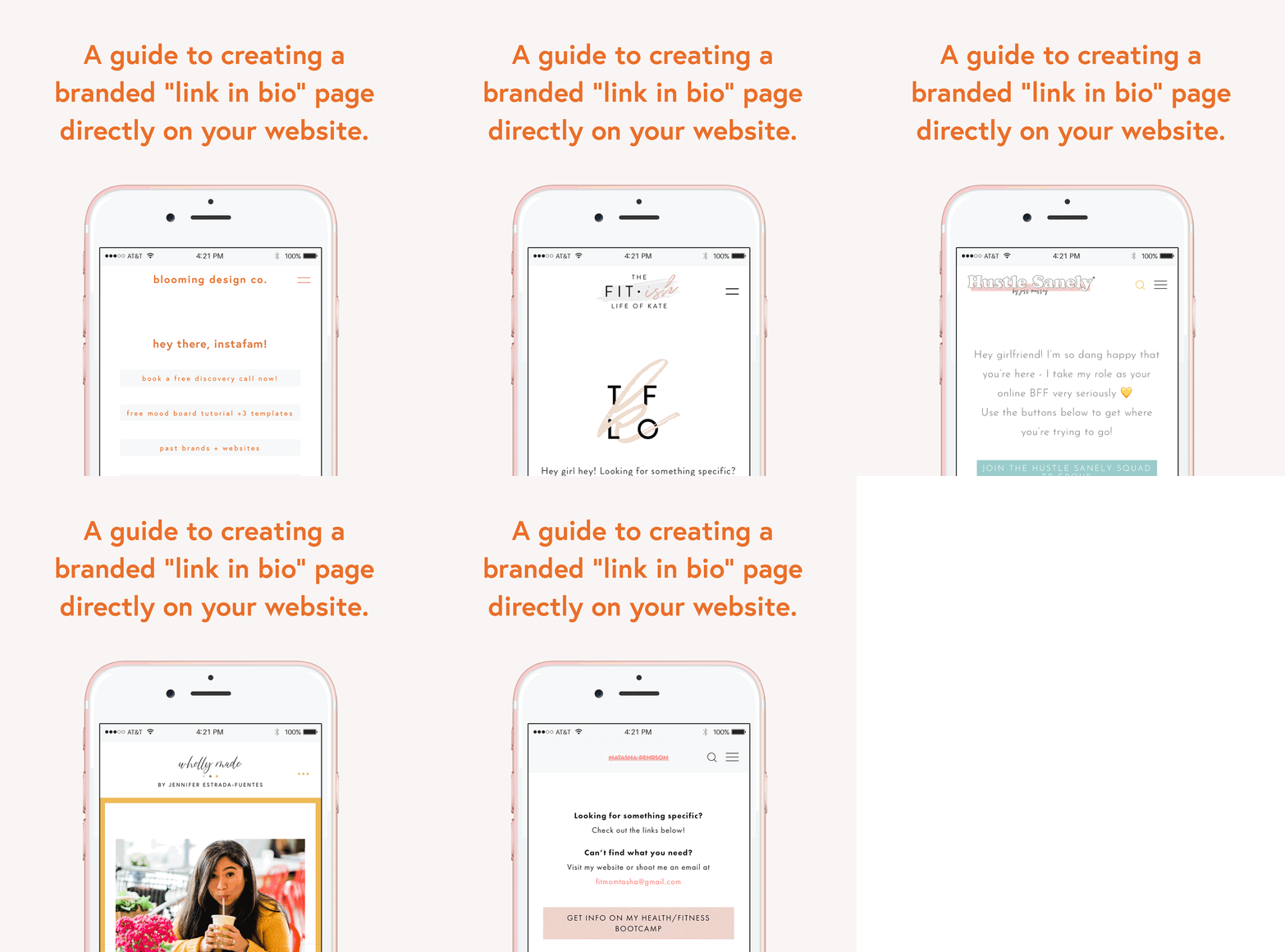
When people click on your Instagram link and are taken to a page on your website, it’s a continuation of your brand experience. This increases their knowledge of your brand, in regards to the “know, like, trust” methodology.
I actually have a whole tutorial showing you how to do this very thing, plus a bonus CSS snippet for Squarespace users! Click below to get access to that.
Instagram Link in Bio Page Tutorial:
These three small things can actually make a big impact when it comes to building trust with website visitors. The more trust built, the more likely people are to buy—and that’s what we want!
Want help creating a cohesive brand for your website by starting with a template?
Check out my Squarespace Templates for Virtual Assistants! They give you a great starting point for developing a cohesive brand. And I walk you through exactly how to personalize them with your own branding, so you feel confident and supported in the process.