
Note: Some of the links on this page are affiliate, which means if you click, I may get a small commission at no cost to you. But trust me when I say, I wouldn’t promote Flodesk if I didn’t truly love it, believe in it, and use it every day to run my business. :)
When to Hide a Flodesk Popup on Squarespace
If you use Flodesk* for your email marketing (seriously, if you don't already, you need to try it out*! IMO it's the most beautiful, budget-friendly email platform out there), you've probably added a popup form to your Squarespace website to grow your email list.
But here's the thing: by default, that popup shows up on every single page of your site. Which is great... until it's not. Maybe you don't want it popping up on your contact page, your podcast page, or a sales page where it's competing with your actual call to action.
Good news is: you don't need to be a developer to fix this! With one small snippet of code, you can hide your Flodesk* popup on any page (or pages!) you want, while keeping it active everywhere else. And I'm going to show you exactly how to do it.
Code Snippet: Hide a Flodesk Popup Form on a Specific Squarespace Page
PLEASE NOTE: This code snippet is only applicable to Squarespace websites.
Step 1: Find Your Collection ID
Option 1: Inspect Code
First, we need to find what's called the Collection ID of the page. Squarespace automatically assigns each page of your website a Collection ID. If you feel comfortable inspecting the code on your website, you can find it right inside the body tag of the page, directly after the head tag:
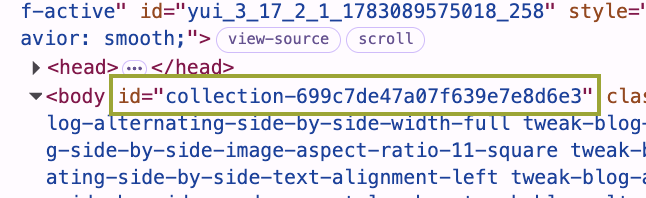
Copy this Collection ID and paste it somewhere handy - you'll need it in a second!
Option 2: Use the Find Squarespace ID Finder Chrome Extension
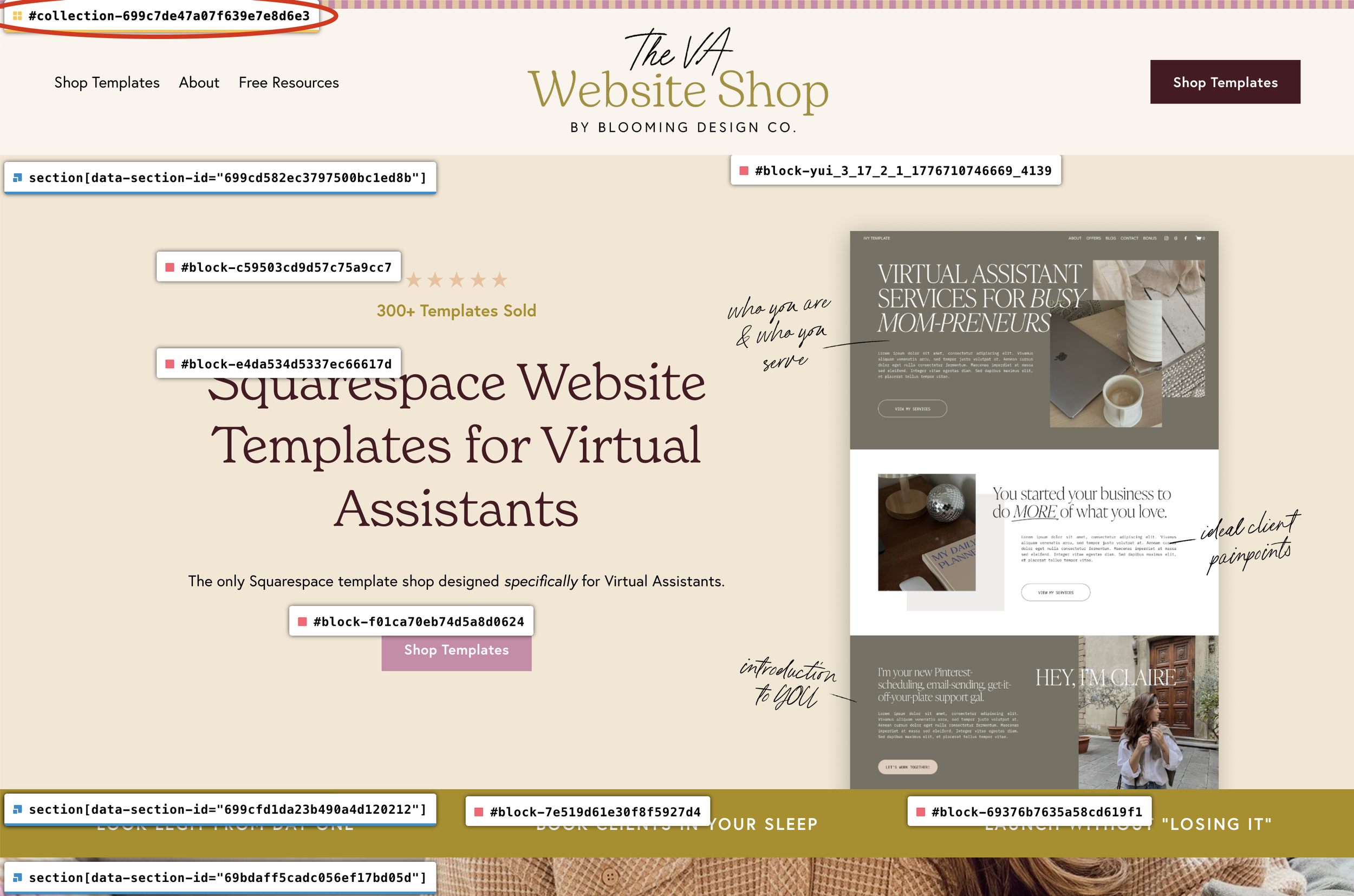
Don't want to look inside your code? No problem! The Squarespace ID Finder Chrome Extension makes it super simple to to find both Collection, Section, and Block IDs on any Squarespace website.
After adding the extension to your browser, navigate to the page you'd like to hide the popup on. (It's sometimes easier to use the extension when logged out of your website, but you can use it while logged in as well.)
Then click on the extension in your toolbar. You'll see a number of boxes with long ID numbers appear. We're looking for the one in the very top lefthand corner that starts with #collection. Click on it, and it will automatically copy to your clipboard. Paste this somewhere handy - you'll need it in a second!
Step 2: Add the Code
Navigate to the Custom CSS area of your website. In the Custom CSS box, paste in this code:
/* Hide Flodesk Popup on PAGE */
body#COLLECTION-ID-HERE [data-ff-type="popup"] {
    display: none !important;
}
Replace COLLECTION-ID-HERE with the Collection ID you copied earlier.If I wanted to hide my popup on the page in the screenshot above, here's what my code would look like:
/* Hide Flodesk Popup on Home Page */
body#collection-699c7de47a07f639e7e8d6e3 [data-ff-type="popup"] {
    display: none !important;
}
Hide a Flodesk Popup Form on Multiple Squarespace Pages
Want to hide your popup on multiple pages? It's easy to add multiple Collection IDs to the code snippet. Just add a comma after each close bracket symbol ( ] ) except for the very last one. It will look something like this:
/* Hide Flodesk Popup on PAGE */
body#COLLECTION-ID-HERE [data-ff-type="popup"],
body#COLLECTION-ID-HERE [data-ff-type="popup"] {
    display: none !important;
}
You can add as many pages to that code as you'd like – just make sure they're separated by commas and that the last one does not have a comma after it.
Grab My Free Flodesk Newsletter Template!
Speaking of Flodesk popups... if you don't have an email list yet (or you're not sure what to even send once someone joins), I've got you covered. Grab my free Flodesk newsletter template below and send your first email today! It follows my signature formula for authentically building connection and selling to your audience, so you're not left staring at a blank screen, wondering what to say.
