
Building A Services PDF That Converts

We all know that websites are important. But you can take your client experience to the next level by creating a downloadable PDF that lists your services and pricing.
Here's why you should create a services PDF:
Convenience for your clients
Sure, your pricing guide's on your website. But as soon as someone leaves your site, they don't have access anymore. Having your guide quickly available on their own computer makes it convenient to go back and look through.
Easy sharing
Easy sharing = more eyes on your brand! If potential clients have your PDF, it means they can also easy share it with friends and family. This, again, adds convenience to their planning process, but also shows off your brand to more potential clients!
An interactive CTA
This really opens up opportunities here. Create a call-to-action at the end of the PDF that links to your booking page. When they've reached the end of your guide, they'll click the link and be taken there.
Remember: reducing the number of steps it takes to book = more bookings!
Track analytics and interest
This is where your website comes in! Use your website's analytics to track download numbers, which can speak to other business aspects like marketing.
What goes inside?
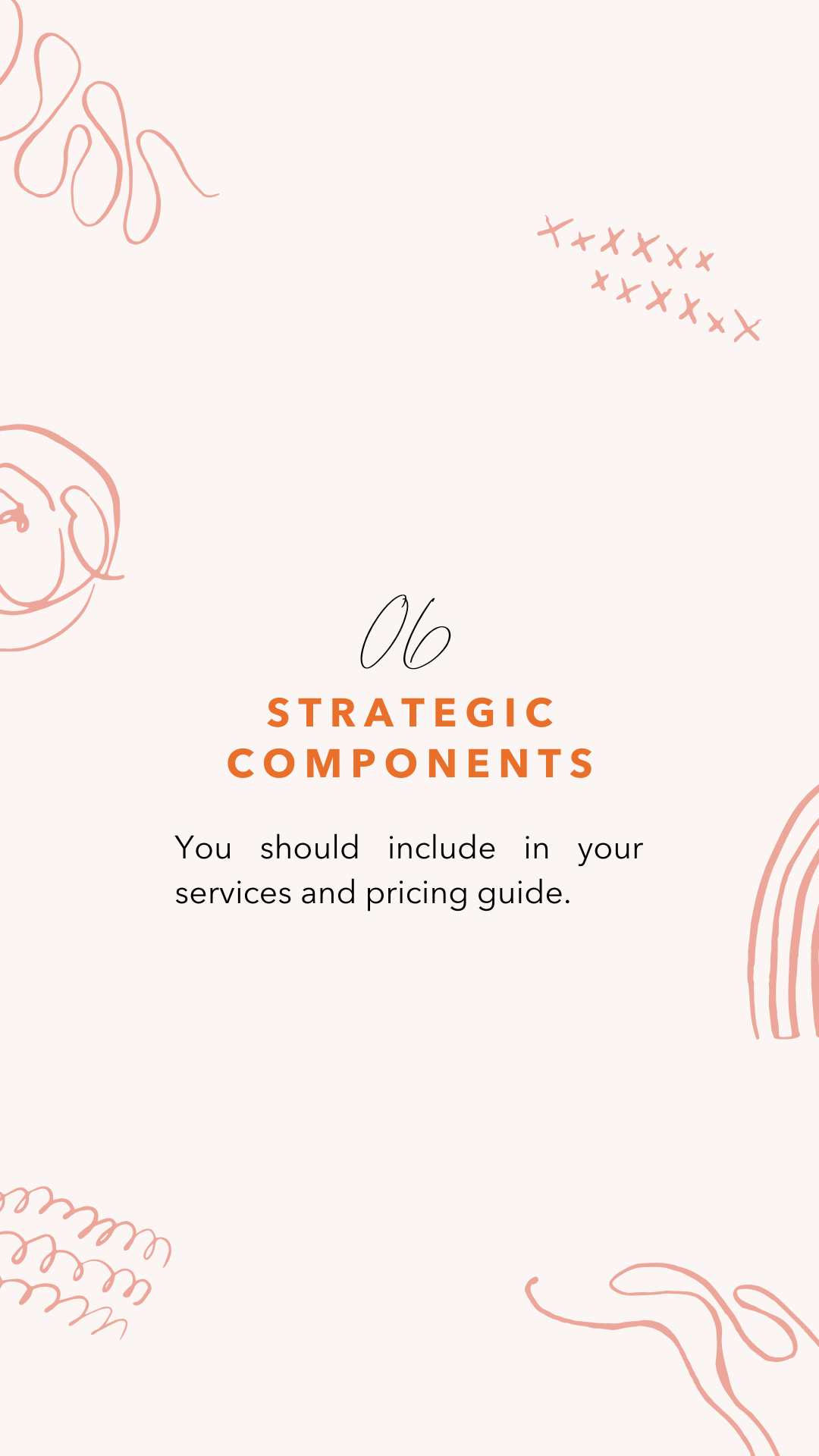

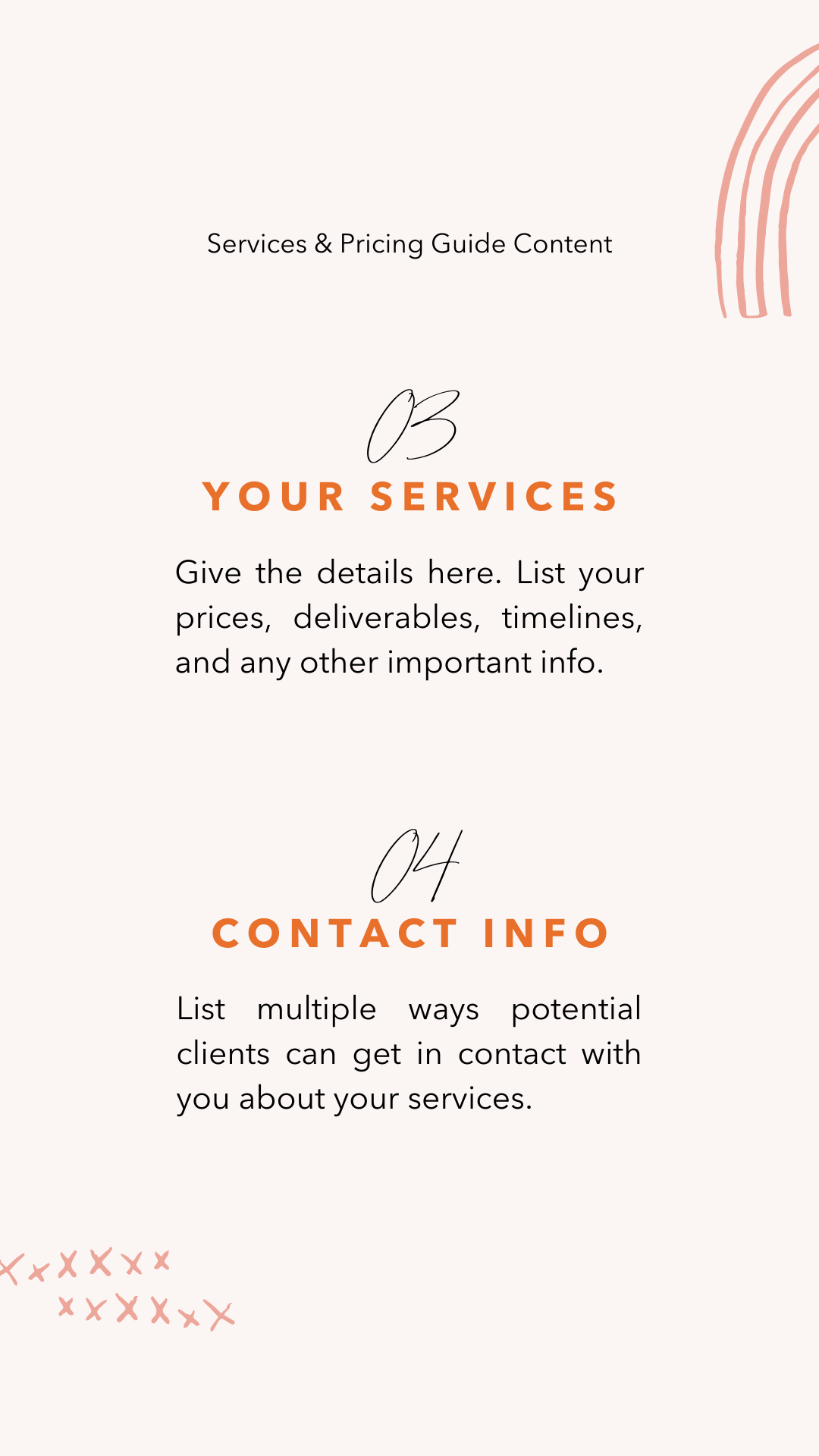
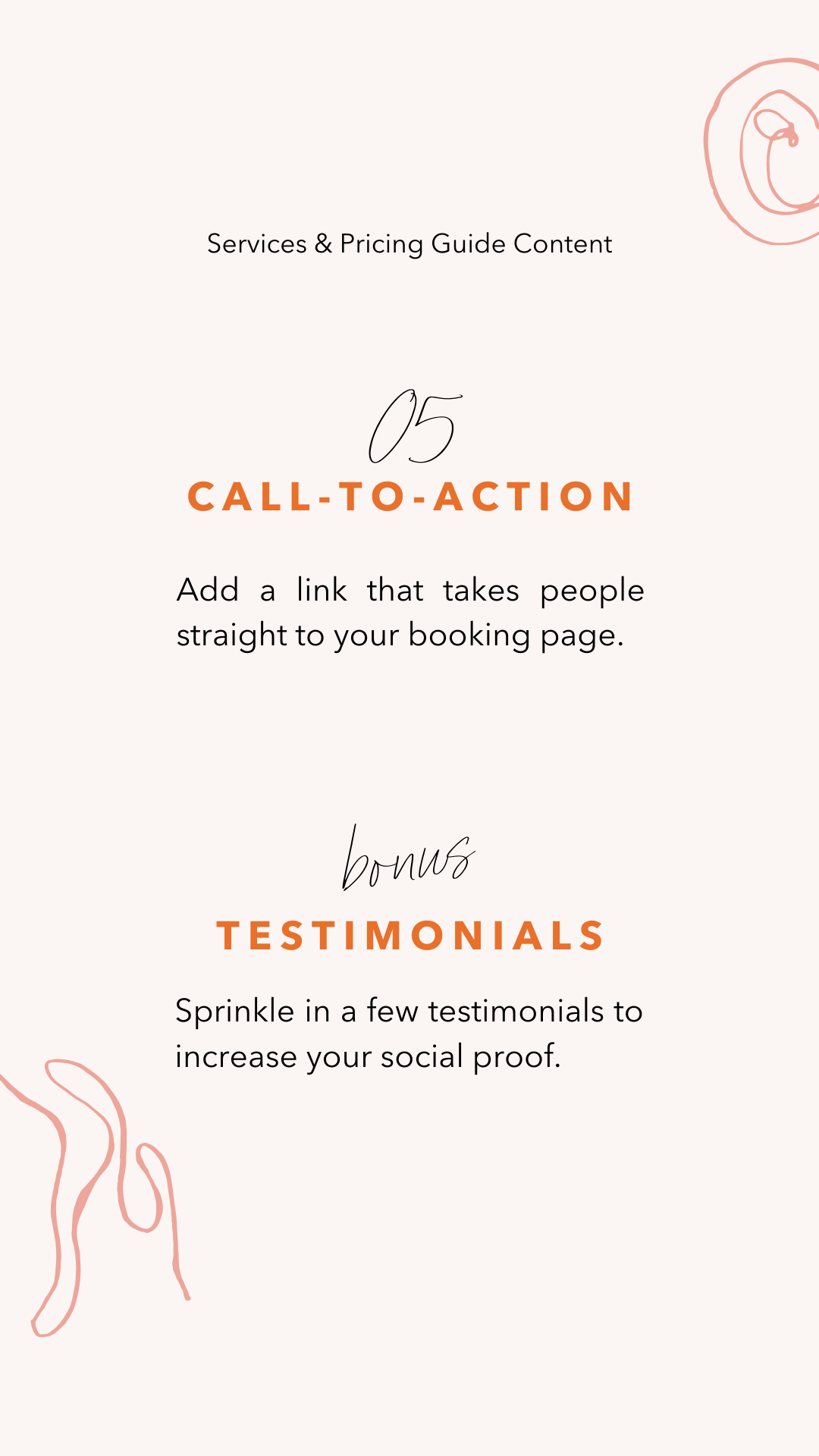
1. A Cover Page
This may seem unnecessary, but it's that professional touch that can leave a lasting impression. We want a pretty cover page with your branding (logo, colors, maybe your slogan) and a title, for brand awareness purposes and also to let people know what they're about to read.
2. A Welcome / Intro
Again, this is for brand awareness, but it can also serve as a place to communicate your brand messaging. Briefly introduce your brand and tell people who they'll become once they book the services you're about to list. (But be sure to keep it short!)
3. Your Services
This is where you go hard on the details. People are clearly interested in your services and want to know specifics, so let's give it to 'em. List your prices, what your packages include, timeline (if applicable), etc. This isn’t the time to hold back, include as much information as you can. People buy when they feel like they understand.
Include high resolution pictures as well, to break up so many large chunks of text. Powerful images to use include ones where people can be seen enjoying your service/product.
4. Contact Info
Tell people how they can easily get in contact with you if they have any specific questions. Treat this page sort of like a business card. Include your numbers, address (if applicable), email, and any social accounts you have as well. You could also throw in a headshot here too.
5. Call-to-Action
This is where you make booking a breeze after they've just read about your incredible services. Make your PDF interactive and add a button that takes them straight to your booking site. This can go on the same page as your contact info as a final page.
Be sure to use active voice here with CTA’s like “buy now” “book an appointment now” or "schedule a call”. Avoid using passive phrases like “learn more” or “contact”.
✨Bonus - Testimonials
You have their attention, so why not sprinkle in a few SHORT testimonials to increase your social proof? Be sure to check out this blog post on crafting the perfect testimonial that’s sure to convert.
Adding Your New PDF
Once you have your PDF together, it’s time to upload it to your website so it can start doin’ it’s thang. If you have a Squarespace website, here’s an easy way to add your downloadable PDF to your site:
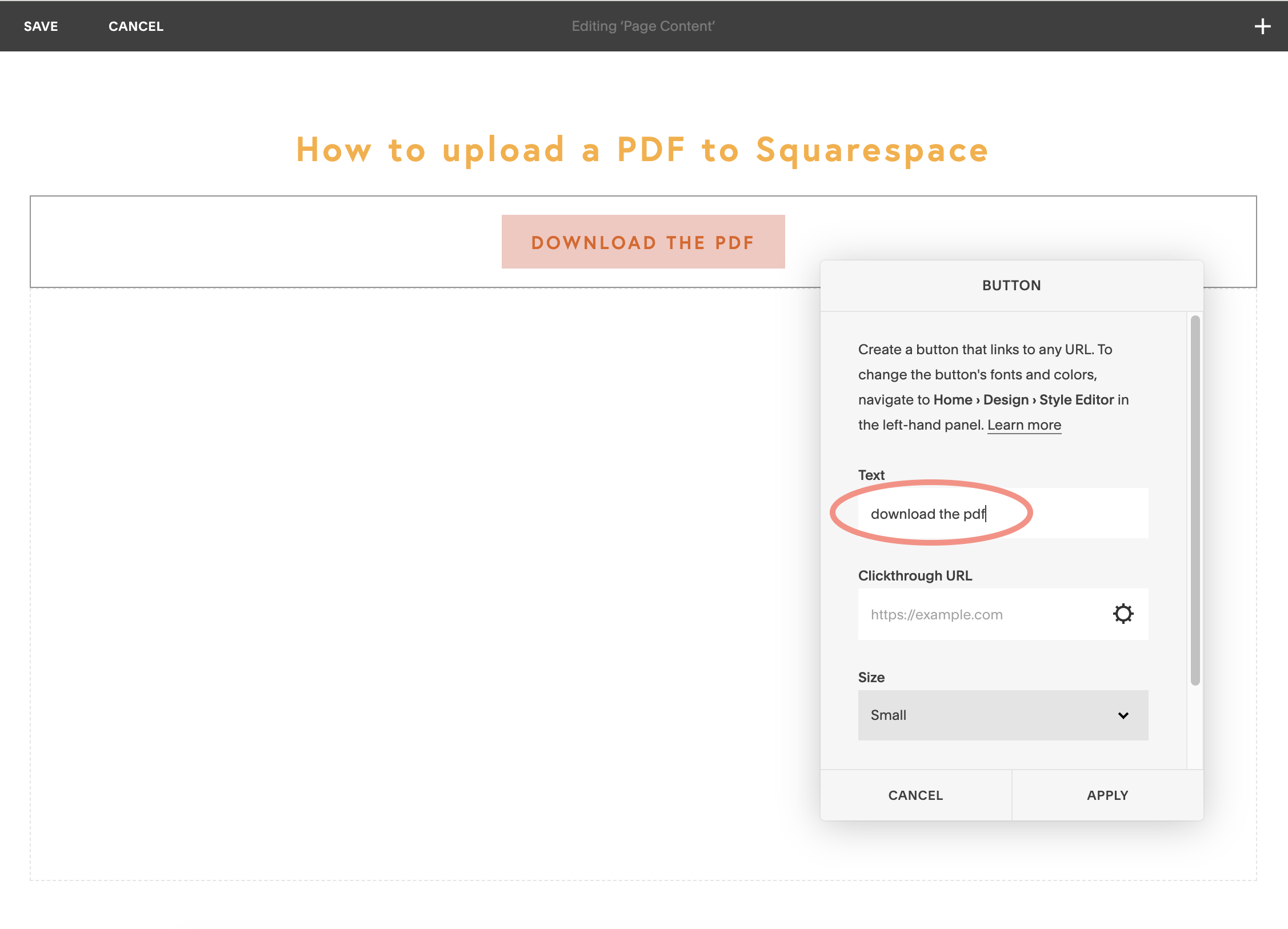
Step 1
Add a button.
Add a button to your webpage where you want people to download your PDF. Then in the "Text" box, write what you want your button to say.
Step 2
⚙️ > File > Upload File
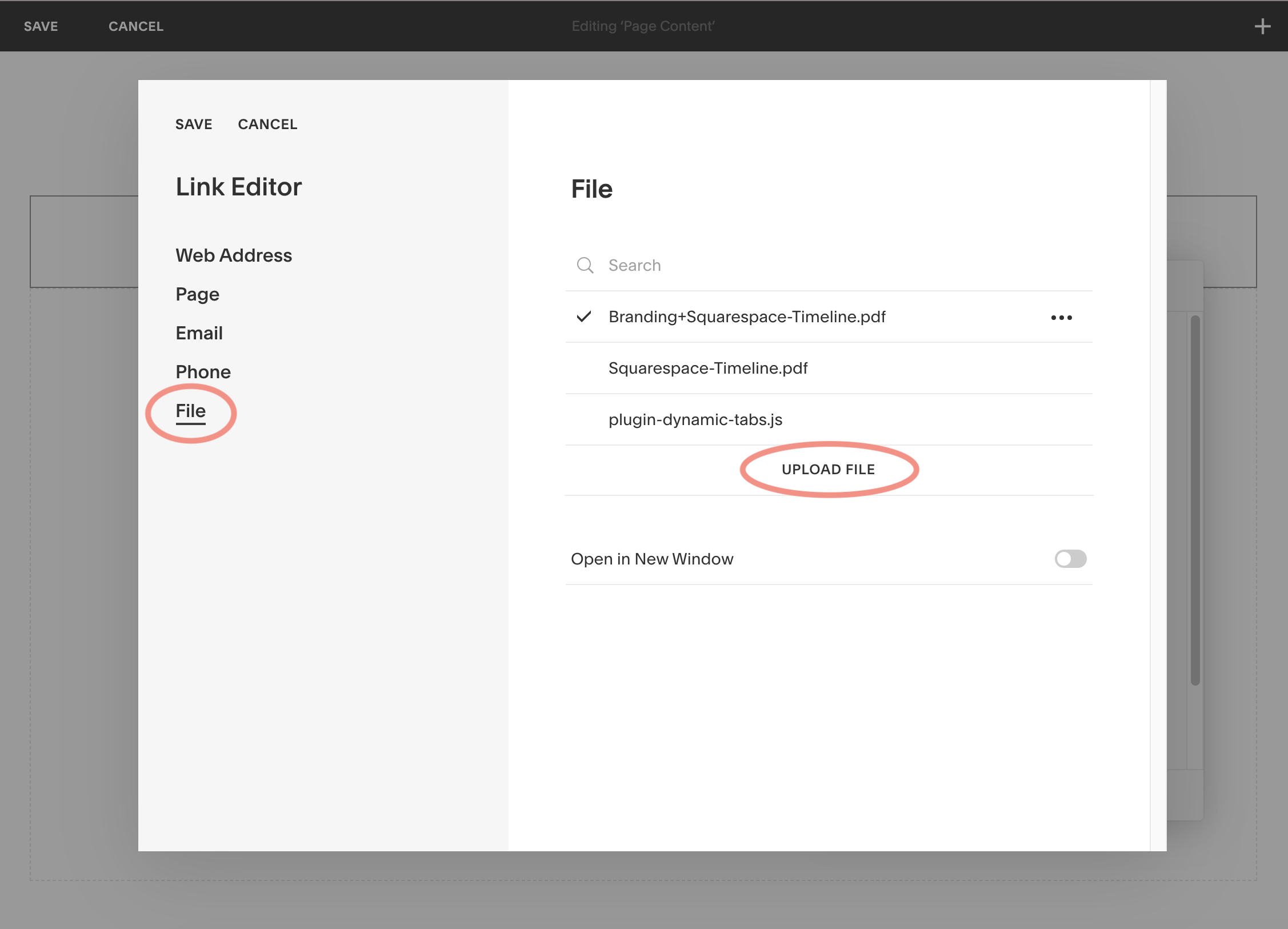
In the "Clickthrough URL" box, click the little gear icon and a popup will appear. On the lefthand side, select File. If you've previously uploaded files to your site, they'll show up here. (and you can skip to step 3 if yours is there already!) Select "Upload File" and find the document on your computer.
Step 3
Select your file and save.
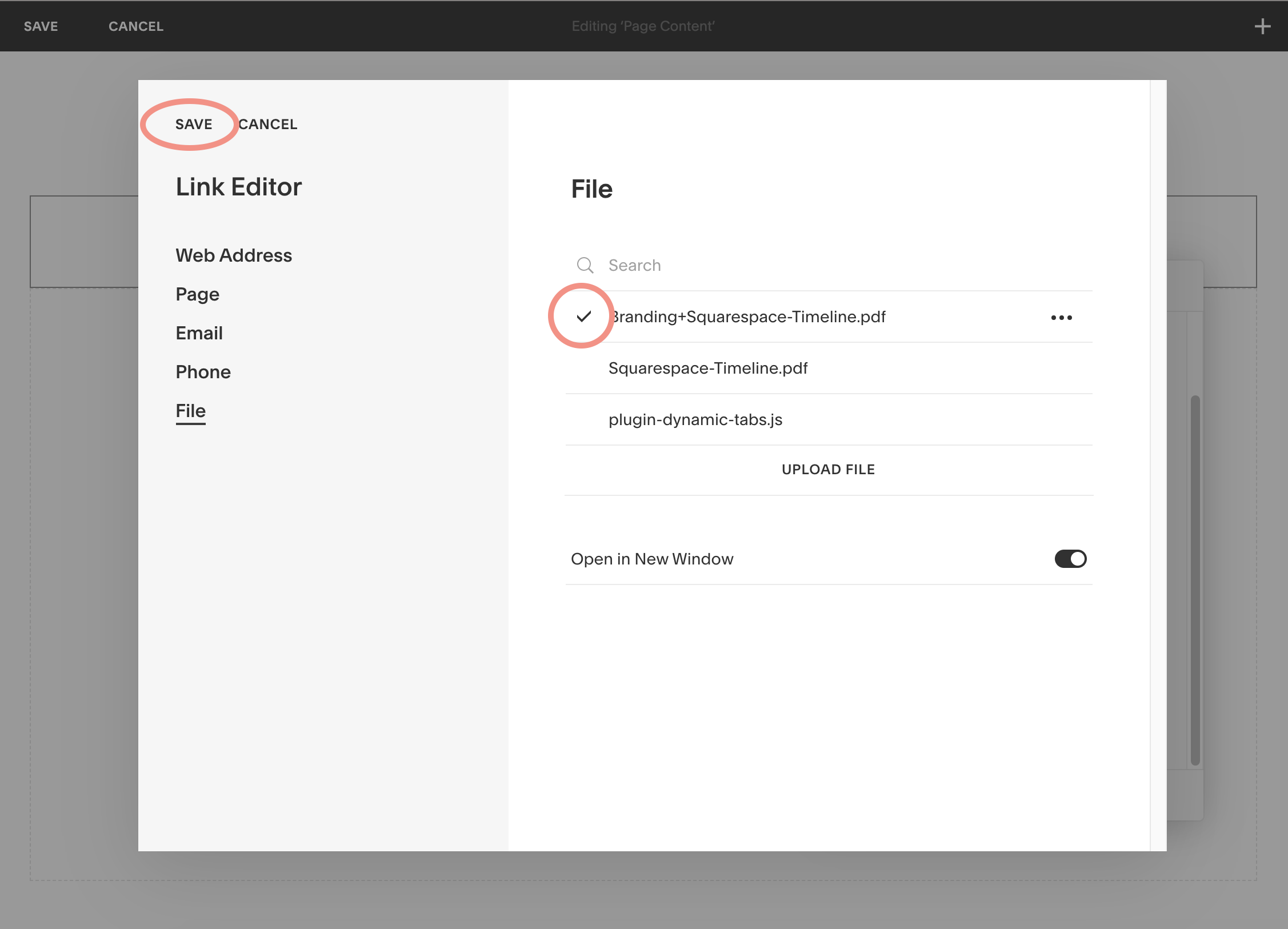
After the file uploads it will show up in the list. To select it, click on the name and make sure a ✔️appears. Then hit Save.
Note: Sometimes when you upload a file, Squarespace already selects it with a ✔️there. Other times you need to make sure to select it before saving.
Bonus
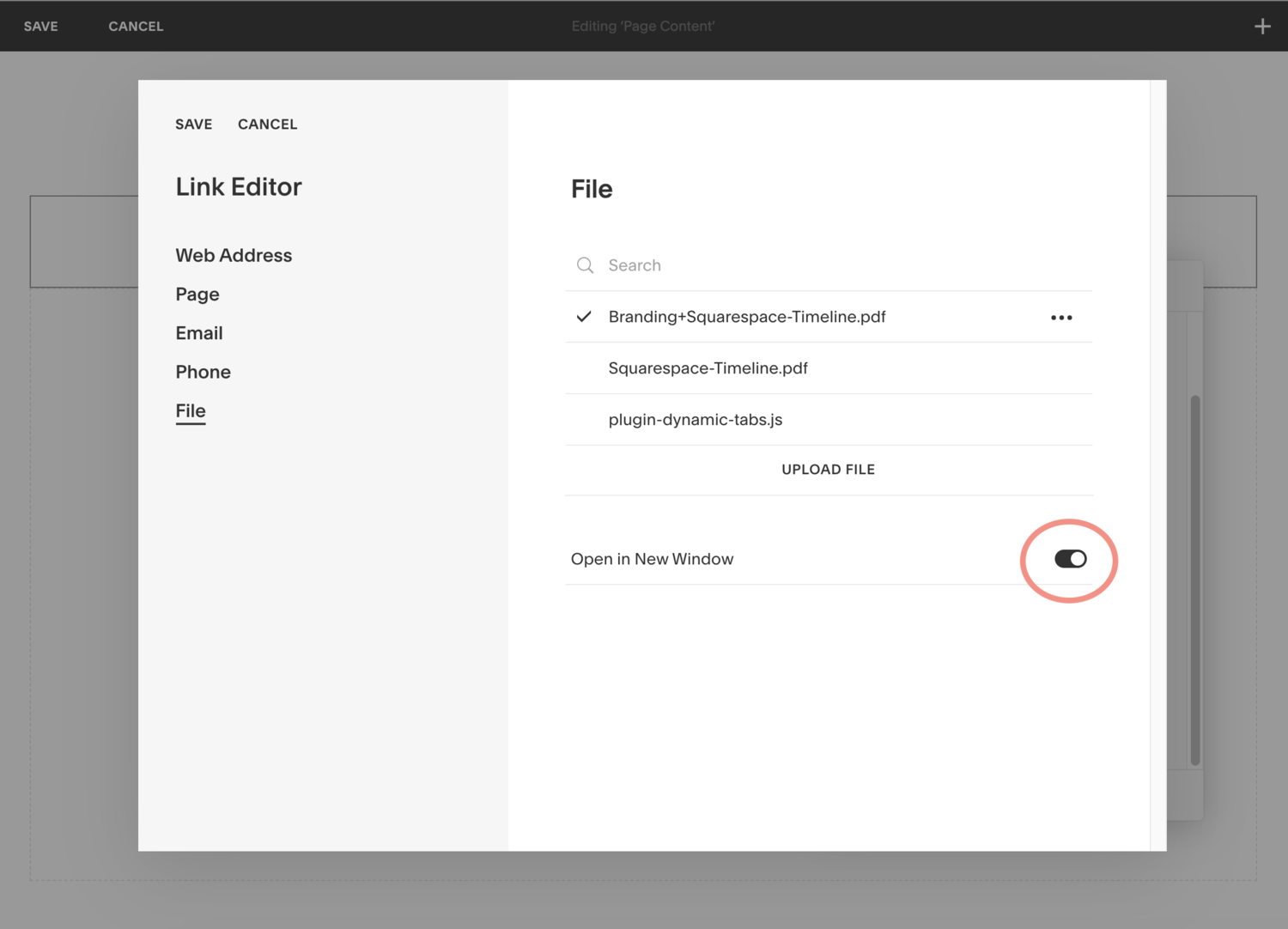
Before closing out of that window, turn ON "Open in New Window". Your PDF will open in a new tab, leaving your website open and making it easy to navigate back to your beautiful site when done reading the PDF!
I always recommend turning this on when creating external links (a link that points away from your website). This keeps your website open in a tab on people’s computers, whether they were intending to return or not.
Need an online home to display your services?
Check out our pre-built websites to quickly launch a professionally-designed website!
